How to Merge Multiple Text Files Into One Without Writing Any Code (2026 Guide)
Merging Text Files: A No-Code Guide
How to Merge Multiple Text Files Into One Without Writing Any Code (2026 Guide)
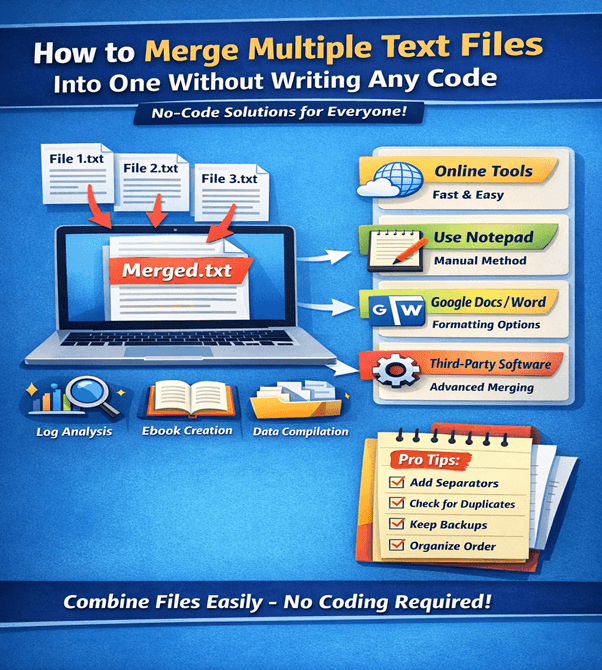
Managing multiple text files can quickly become overwhelming—especially when you're working with logs, reports, datasets, or content drafts. The good news? You don't need to be a developer or write a single line of code to merge text files efficiently.
Let's discover simple, fast, and no-code methods to combine multiple text files into one—perfect for beginners and professionals alike.
Why Merge Text Files?
Before diving into the methods, let's understand why merging text files is important:
- Organize scattered data into one file
- Save time and reduce manual copy‑paste work
- Simplify data analysis and reporting
- Improve readability and file management
- Essential for developers, marketers, and analysts
Method 1: Use Online Tools (Fastest & Easiest)
The easiest way to merge text files is by using online tools. Platforms like NanoWebTools provide free utilities that allow you to combine files instantly.
Steps:
- Visit the text merge tool
- Upload multiple .txt files
- Arrange file order (if needed)
- Click “Merge”
- Download the combined file
Benefits:
- No installation required
- Works on any device
- Beginner-friendly
- Instant results
👉 Best for: Quick tasks, non-technical users, and small to medium files
Method 2: Merge Text Files Using Notepad (Manual Way)
If you prefer an offline method, you can use Notepad (or any basic text editor).
Steps:
- Open the first text file
- Copy all content (Ctrl + A → Ctrl + C)
- Open a new file
- Paste the content
- Repeat for other files
- Save as a new merged file
Pros:
- No internet required
- Simple and accessible
Cons:
- Time‑consuming for large files
- Not scalable
👉 Best for: Small files or quick edits
Method 3: Use Word Processors
You can also merge text files using tools like Microsoft Word or Google Docs.
Steps (Google Docs):
- Open a new document
- Upload or paste content from multiple files
- Arrange content in order
- Download as .txt or .docx
Benefits:
- Better formatting control
- Easy editing and structuring
- Cloud access (Google Docs)
👉 Best for: Content writers, editors, and documentation tasks
Method 4: Use File Combine Features (Windows Built‑in)
Windows users can take advantage of built‑in file handling:
Steps:
- Select all text files in a folder
- Right‑click and open with a text editor
- Copy and paste into one file
Alternatively, drag multiple files into a text editor that supports tabs.
👉 Best for: Users who want a quick offline workaround
Method 5: Use Third‑Party Tools (No Coding Needed)
There are dedicated tools designed for file merging:
- File Joiner software
- Text file merger utilities
- Bulk file processors
These tools provide:
- Batch processing
- File ordering
- Large file handling
👉 Best for: Heavy users and large datasets
Pro Tips for Better File Merging
To ensure clean and professional results:
- ✔ Add separators between files (e.g., ----- File 1 -----)
- ✔ Maintain consistent formatting
- ✔ Check for duplicate content
- ✔ Rename files logically before merging
- ✔ Backup original files
Common Use Cases
Merging text files is widely used in:
- Log file analysis
- Ebook creation
- Blog/content compilation
- Data aggregation
- Project documentation
Best Method for You?
Scenario |
Recommended Method |
Quick & easy |
Online tools |
Offline, small files |
Notepad |
Formatting needed |
Google Docs / Word |
Large files |
Third‑party tools |
Final Thoughts
Merging multiple text files doesn't have to be complicated. With the right tools and methods, you can combine files in minutes—without writing any code.
For the fastest and most hassle‑free experience, tools like SnapToolsOnline offer a powerful solution that works across devices and skill levels.
👉 Whether you're organizing data, creating reports, or managing content—these no-code methods will save you time and effort.
FAQs
- Can I merge text files without software?
Yes, you can use online tools or basic editors like Notepad.
- Is it safe to use online tools?
Most trusted platforms are secure, but avoid uploading sensitive data.
- What is the fastest method?
Online tools are the quickest and easiest option.
- Can I merge large text files?
Yes, but use dedicated tools or software for better performance.
- Will formatting be preserved?
Basic .txt files have minimal formatting, but tools like Word can help structure content.